When first accessing an email account through a desktop most of the customers would use and email application like Outlook or Thunderbird. To use your email with these applications you must first set it up. With this guide, you can set this up by following these steps.
HOW TO START
1/ Please log in into your client area at: Client Area
2/ Go to ==> Services ==> My Services
3/ Click on your hosting plan
4/ Go to cPanel (top-left corner)
5/ Go to Email Accounts (Click the email accounts icon in the icon menu).
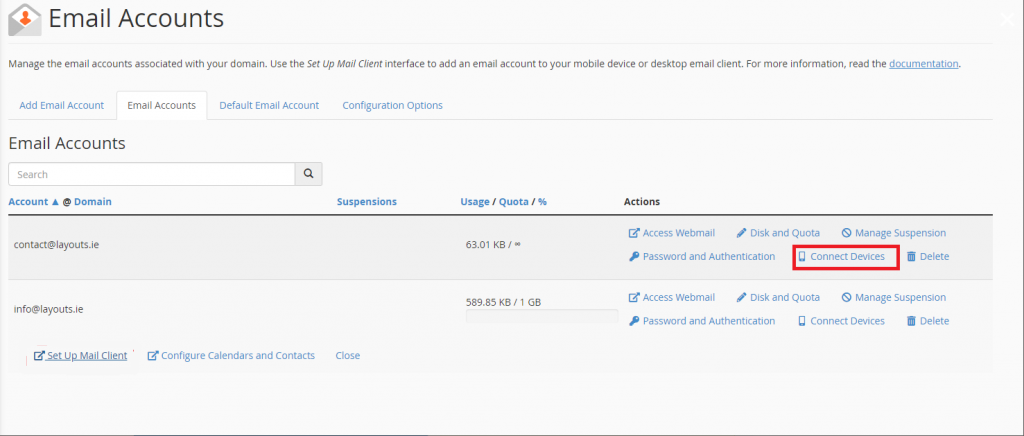
At this stage you should see your email accounts, unless you have no email accounts then you can create one from there on. When you find the email account you wish to connect to the email app, click Connect Devices, followed by Set Up Mail Client.
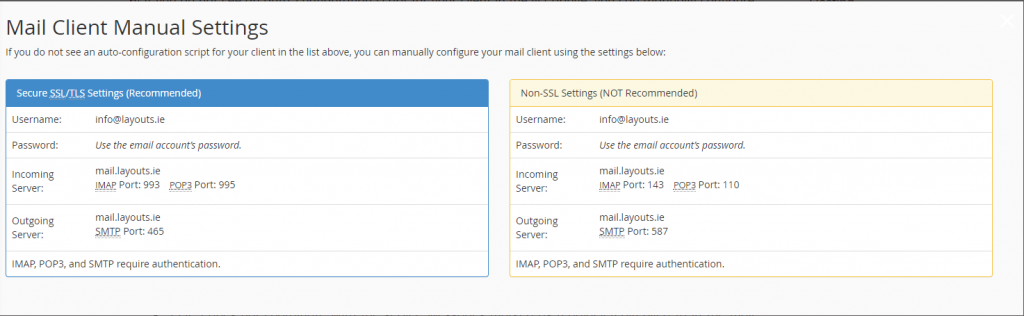
This should bring you into a page with Mail Client Manual Settings. You should have two boxes, one in Blue and the other one in Orange. The blue one should have the header Secure SSL/TLS Settings (Recommended). For the set up we will be using the details in this box.
SOME IMPORTANT NOTES BEFORE WE BEGIN
IMAP email access coordinates between the server and your mail application. Messages that have been read/deleted/replied to will show up as such, both on the server and in the mail application.
POP3 does not coordinate with the server. Messages marked as read/deleted/replied to in the mail application will not show up as such on the server. This means that future mail downloads with POP3 will show all messages as unread.
Outgoing mail is sent using SMTP.
We recommend using POP3 over SSL/TLS or IMAP over SSL/TLS since they provide increased security for your interactions with the remote mail server.
Important: This only applies to customers hosted on cPanel.
SECURE OR NOT SECURE?
Secure SSL/TLS settings are recommended, but if the verification with Outlook isn't successful, please use the not recommended settings.
HOW DO I ENABLE SMTP AUTHENTICATION?
An example: Microsoft Outlook® 2016 (PC)
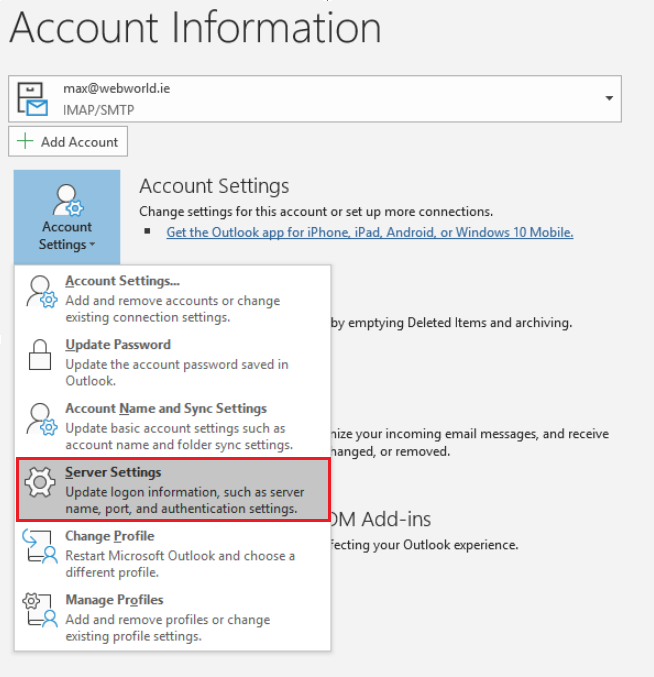
From the File menu, choose Account Settings, click once and then click onto Server Settings.
Click Outgoing mail in blue font and a menu should appear.
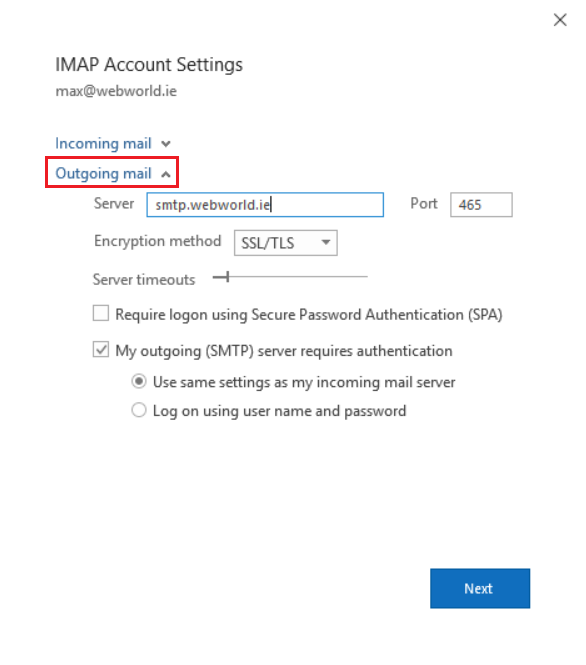
Make sure that My outgoing (SMTP) server requires authentication box is ticked like in the picture above. Also be sure that the Server is the same as the one that was given to you in the Blue box at the beginning of this tutorial, you can find this box in cPanel as mentioned previously. Make sure that the Port is also the same as the one in the Blue box.