When you access an email account through a desktop email application email application will require specific information about your email account. You can use the auto-configure options to attempt to automatically configure your email application. If the available options are not compatible with your application, you will need to use the manual settings information.
HOW TO START
1/ Please log in into your client area at:
2/ Go to ==> Services
3/ Click the hosting plan header
4/ Go to cPanel (top-left corner)
5/ Go to e-mail accounts (Click the e-mail accounts icon on the bottom)
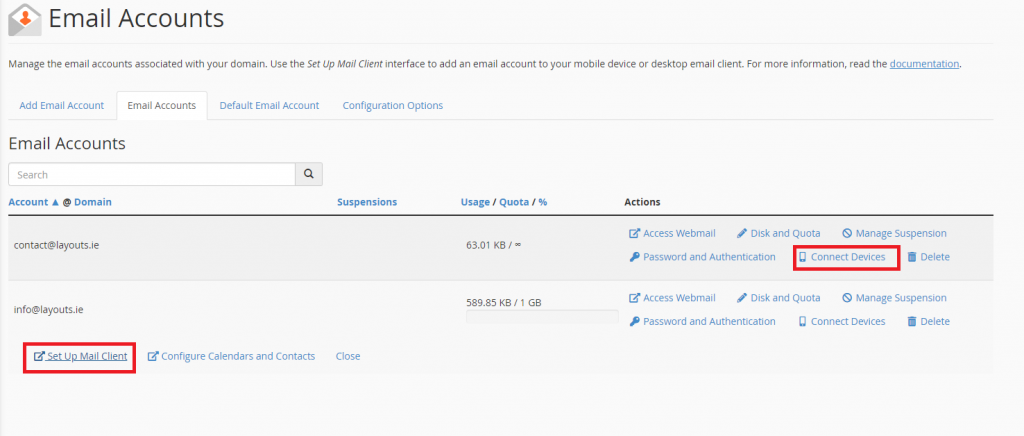
When you see all your email accounts, select the correct one and click: Connect devices link, and Set Up Mail Client
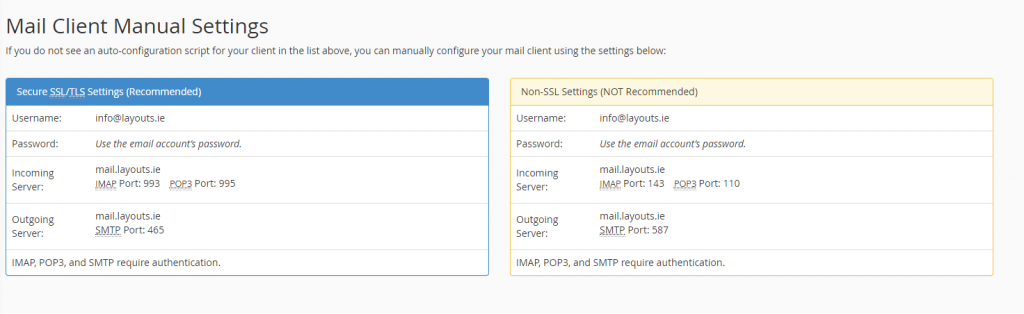
6/ If you do not see an auto-configuration script for your client in the list above, you can manually configure your mail client using the settings below (please see an example below) :
Notes:
IMAP email access coordinates between the server and your mail application. Messages that have been read/deleted/replied to will show up as such, both on the server and in the mail application.
POP3 does not coordinate with the server. Messages marked as read/deleted/replied to in the mail application will not show up as such on the server. This means that future mail downloads with POP3 will show all messages as unread.
Outgoing mail is sent using SMTP.
We recommend using POP3 over SSL/TLS or IMAP over SSL/TLS since they provide increased security for your interactions with the remote mail server.
SECURE/ NOT SECURE?
Secure SSL/TLS settings are recommended, but if the verification with Outlook isn't successful, please use NOT SLL settings (an example will be provided below)
HOW DO I ENABLE SMTP AUTHENTICATION?
An example: Microsoft Outlook® 2010 (PC)
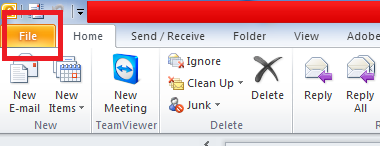
From the File menu, choose Account Settings
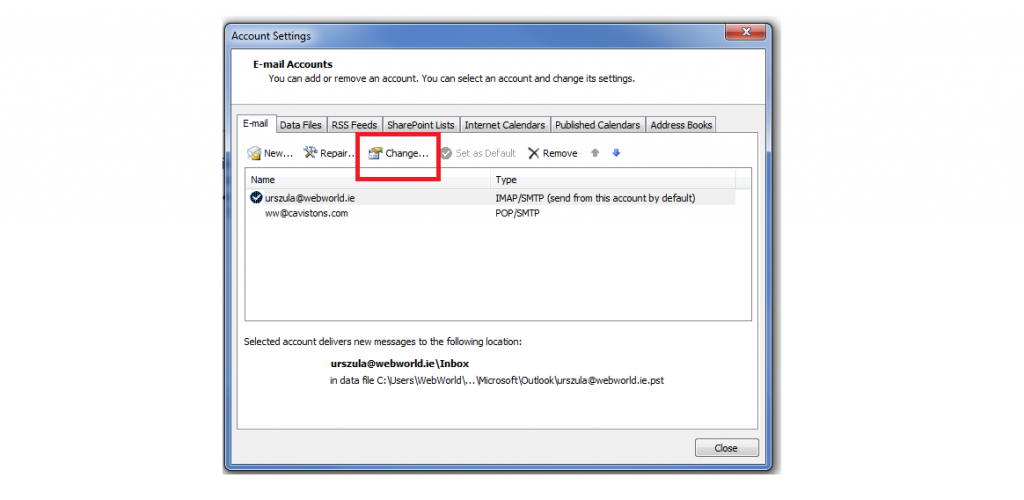
Account settings: Click once to display a pop-up window at the bottom:
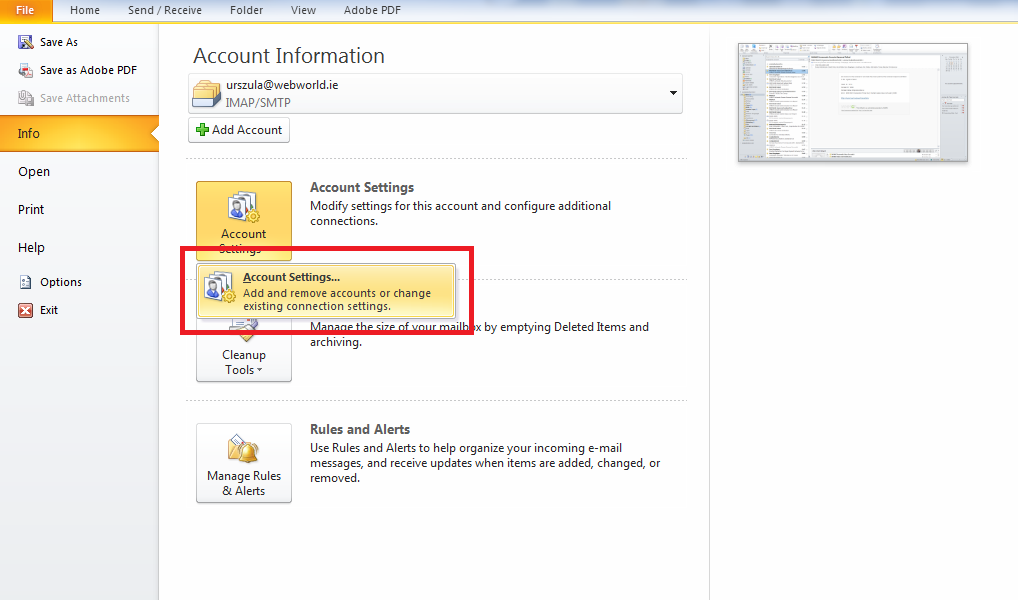
Select your Email account and click the Change button above:
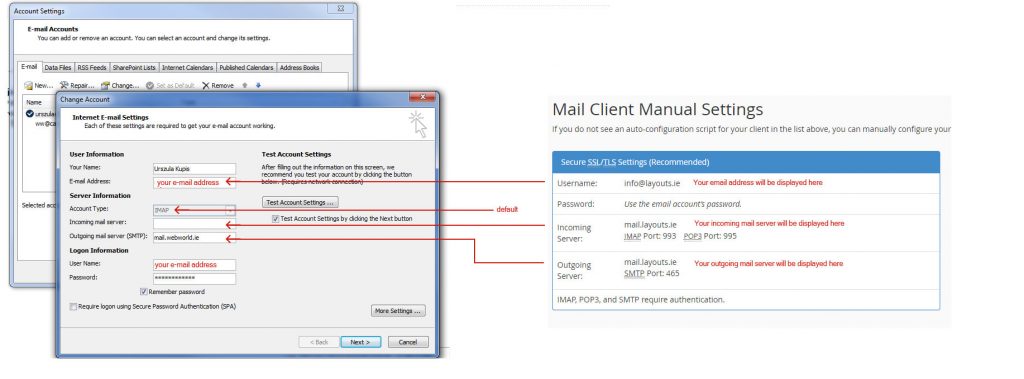
Please check/enter all details from
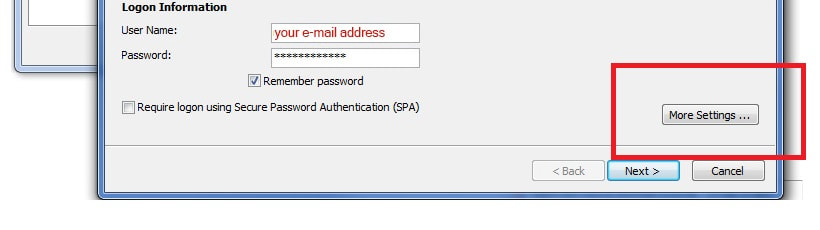
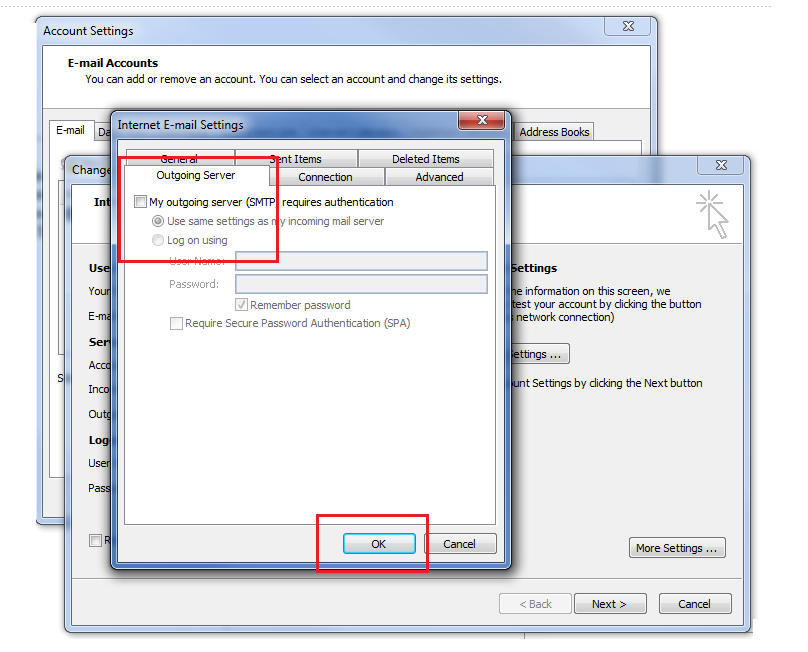
Please click more settings
Please go to Outgoing Mail Server and ensure that the box My outgoing server (SMTP) requires authentication is unchecked
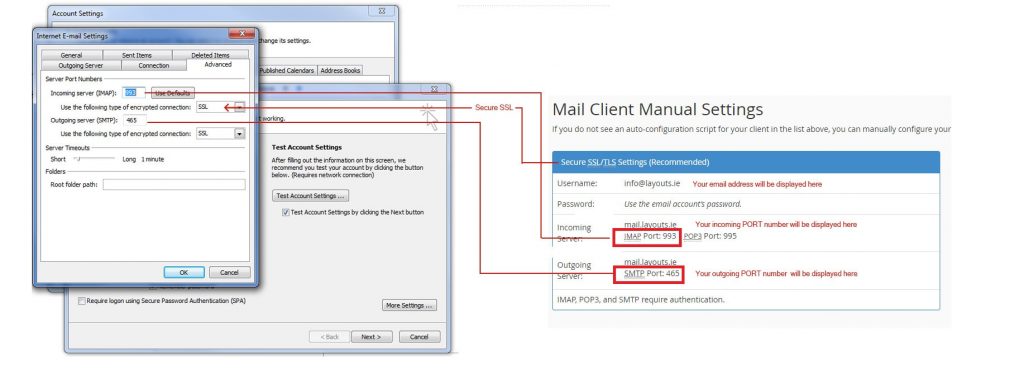
In the Advanced section, please set up PORT numbers:
Notes:
Ports numbers are depends from the authentication settings.
Let's use the port numbers for secure SSL/TSL or Non-SSL settings
EMAIL SOFTWARE YOU CAN SET UP TO ACCESS YOUR E-MAIL ON YOUR PC & MAC
Email software you can set up to access your e-mail on your PC
Microsoft Outlook®; Express (PC)
Windows® Mail (PC)
Microsoft Outlook® 2010 (PC)
Outlook® 2007 (PC)
Microsoft Outlook® 2003 and 2002/XP (PC)
Outlook® 2000 and Outlook® 98 (PC)
Eudora® 6.x (PC)
Netscape Messenger® 7.x (PC)
Netscape Messenger® 4.x (PC)
Email software you can set up to access your e-mail on your Mac:
Mail for OS X (Mac)
Eudora 6.x (Mac)
Microsoft Outlook Express for OS 9 (Mac)
Mozilla Thunderbird
If you have any questions, or if you need more information, do not hesitate to contact us please: support@webworld.ie